
How to Create a Bicycling Route with Google Maps

Planning a good cycling route can make the difference between an enjoyable ride and a frustrating one. Whether you’re commuting, riding for fitness, or exploring new paths, choosing roads with the right mix of safety, terrain, and distance matters — especially when riding an electric bike.
Google Maps offers powerful bicycling tools that can help riders create safer, more efficient routes by highlighting bike-friendly roads, trails, elevation changes, and traffic patterns. In this guide, we’ll walk through how to create a bicycling route using Google Maps and explain how to adapt routes for different riding styles, distances, and eBike capabilities.
Plan Your Bike Ride
Let’s plan a bike route on Google Maps using a laptop or desktop computer. In the end, we will share the directions to a mobile phone.
Set Your Starting Point
Using your favorite web browser, navigate to Google Maps.
Please note these instructions may vary depending on your device. These are for computer use - mobile will look different.
The first step is to set your starting point. The example uses the Grove Hotel in downtown, Boise, Idaho, but you will enter your address or maybe the spot your RV is parked, etc.
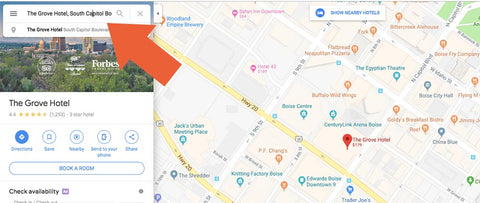
Type the address or name of your starting point into the search field on Google Maps.
Set Waypoints
The bike route will be a round trip, but you will certainly want to see some places along the way, so let’s enter a couple of waypoints. These waypoints will also help us plan the bicycle route.
Click the directions icon. This icon is positioned just a little way down from the search bar wherein you entered your starting address.

The directions icon opens up the route planning features in Google Maps.
The Google Maps interface will change. You need to do three things. (1) To start, choose the cycling mode for the map.
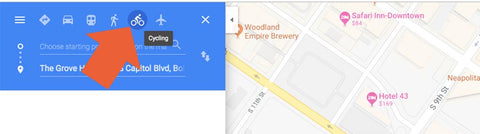
Click the cycling mode icon.
(2) Then switch the position of your starting point so that it is at the top. To do this, click the up-and-down arrow icon.
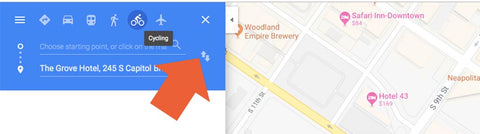
Click the up-and-down arrow icon to reposition the starting point. You can move waypoints too.
This will move your starting location to the top of the list.
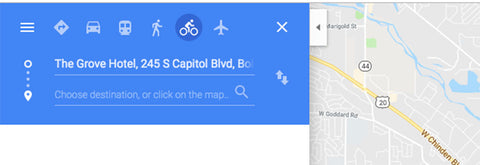
Your starting position should now be at the top of the list.
(3) Next, type in the address or name of a new waypoint. You can add several waypoints by clicking the “Add Destination” icon or link. The example includes five waypoints. The last waypoint is the starting point. Thus, we have a loop.
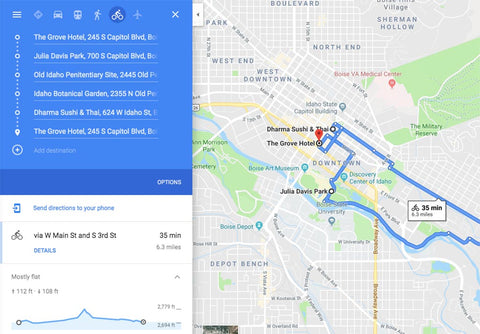
Add waypoints to create a loop.
Switch to the Bicycling Map View
Google Maps includes a bicycling view that will add cycling-specific information to the main map. To access this view, first, click on the menu icon.
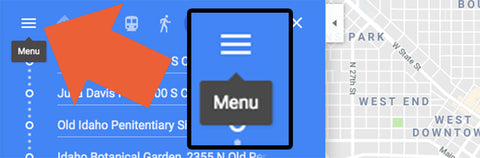
Click this menu icon to open up some of Google Maps’ features.
Next, click on the word “bicycling” to add the aforementioned bicycling information to the main map.
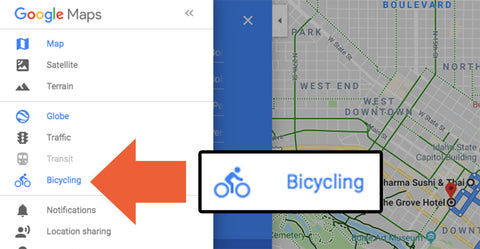
Not surprisingly, selecting bicycling adds biking information.
This will fundamentally change the map. You should now see bike-friendly roads, bike lanes, and trails.
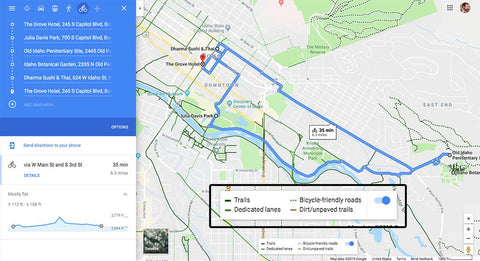
Google Maps provides helpful information for riding your electric bike.
Adjust Your Route
Now you can adjust your route. Click and hold any portion of the route to drag it onto a trail or a more bike-friendly road.
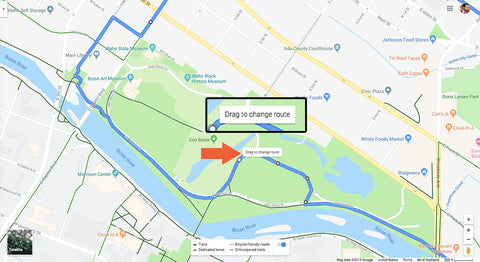
Click, hold, and drag to change your route.
As you change your route, Google will recalculate the total distance and the amount of elevation change. If you’re riding an electric bike, you will be able to climb the hills like they are not even there.
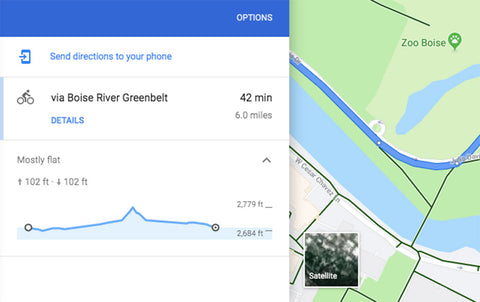
Google Maps shows you the total distance for your route and how much the elevation will change.
Send the Route to Your Mobile
Once you have a route you like, you can send it to your mobile phone.
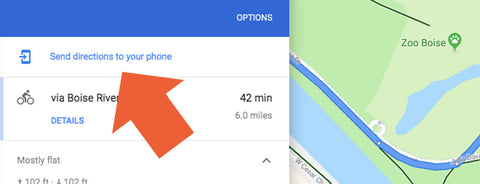
Send the route to your phone.
If you are signed in to Google on your mobile and on your computer, Google Maps should have your phone available on a list of options. If not, you can email a link to yourself and open that link on your mobile.
You could also create a similar route directly in the Google Maps app on your mobile. The steps are the same.
Create Smarter, Safer Bike Routes with Google Maps
Learning how to create a bicycling route using Google Maps is one of the simplest ways to improve every ride—whether you’re commuting, training, or exploring new areas. By using cycling mode, bike-friendly map layers, elevation data, and custom waypoints, you can plan routes that are safer, more efficient, and better suited to your riding goals.
For electric bike riders, route planning becomes even more valuable. Understanding distance, terrain, and elevation changes ahead of time helps you manage battery range, ride more comfortably, and confidently tackle hills that might otherwise feel intimidating. Google Maps’ ability to highlight bike lanes, trails, and lower-traffic roads makes it a powerful tool for both casual riders and experienced cyclists.
Before your next ride, take a few minutes to plan ahead. A well-thought-out bike route can turn an ordinary ride into a smoother, more enjoyable experience—while helping you get the most out of your eBike.
Related Guides
- How to Plan a Multi-Day eBike Touring Adventure
- Best eBike Trails in the U.S. for Your Next Adventure
-
eBike Batteries Explained: Unlock Your Ride's Potential
Frequently Asked Questions About Bicycling Routes
Does Google Maps show bike-friendly roads?
Yes. Google Maps includes a bicycling layer that highlights bike lanes, trails, and roads commonly used by cyclists.
Can Google Maps show elevation for bike routes?
Yes. Elevation profiles are available for many routes and are useful for understanding climbs and descents before you ride.
Is Google Maps good for planning eBike routes?
It can be very helpful, especially when combined with elevation data and distance estimates to better manage battery range and ride comfort.
Are bike routes in Google Maps always safe?
Not always. Google Maps suggests popular cycling routes, but riders should still consider traffic levels, road conditions, and local bike infrastructure.